![fldata-logo.png]](https://help.fldata.com/hs-fs/hubfs/fldata-logo.png?height=50&name=fldata-logo.png)
Managing your Forms
We are highly encouraging all clients to take this as an opportunity to thoroughly review your forms for accuracy before publication, and to leverage all of the new functionality Smart Forms has to offer. To make this as easy as possible, we have added a few new tools.
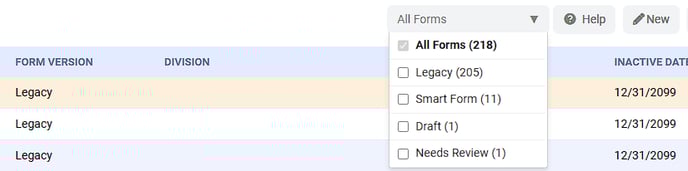
- On the Form list View, there is a filter that allows you to sort by form version.
-
- All Forms: Full list all form versions
- Legacy: Forms that have not been converted
- Smart Forms: New Smart Forms or Published Legacy Forms
- Draft: Converted Legacy Forms that do not need review
- Needs Review: Converted Legacy Forms that do need review
To view all forms after you made a selection(s), simply deselect your previous selection(s).
- On the Forms Detail Page, you can still edit the Layout of your legacy form even after the conversion by hovering over the options. You can do the same thing for Preview.

Converting your Legacy Forms:
Once you convert a Legacy Form to a Smart Form, it cannot be reversed.
- In either MOC or ACT, click Settings. Then navigate to the desired form.
- Once there, click "Convert to Smart Form" beside the Form Version.
- Any associated action items and profiles will be copied over at this point.
- New Form Field Reports will not need to be created. Current forms will retain all legacy data, and the forms will be swapped seamlessly.
- Your Form version will change to either Draft or Needs Review
Draft Version: If your form does not require any edits
- You will be presented with two options: Preview & Edit or Publish on the below screen.
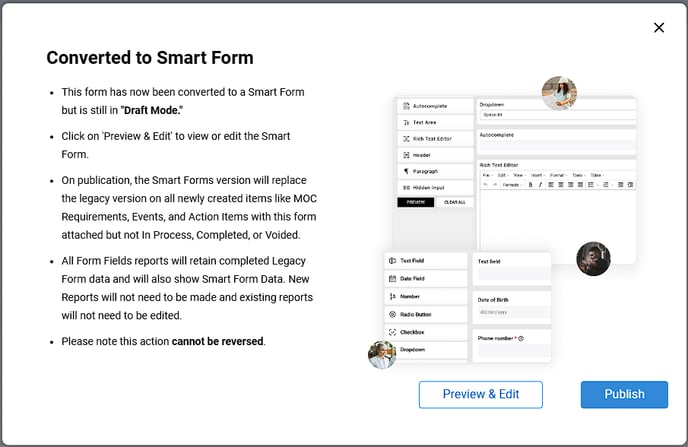
- By clicking Publish, your form will be "Live" meaning it will automatically be swapped in any existing Requirements, Form Field Reports, Profiles, etc.
Published Forms will not replace an In Process items, only new items going forward.
- By clicking Preview & Edit, you will be brought to the Smart Form Layout Designer.
- By clicking the "X" in the top right, you will be brought back to the Form Details Page.
- Once the necessary updates have been made, beside the form's version, there will be a "Publish Smart Form" option.
Needs Review: If your form requires editing.
- You will be presented the Preview & Edit option on the below screen:
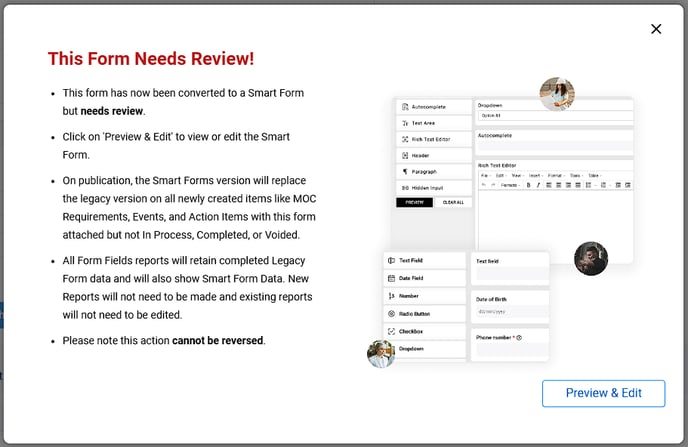
- By clicking Preview & Edit, you will be brought to the Smart Form Layout Designer.
- By clicking the "X" in the top right, you will be brought back to the Form Details Page.
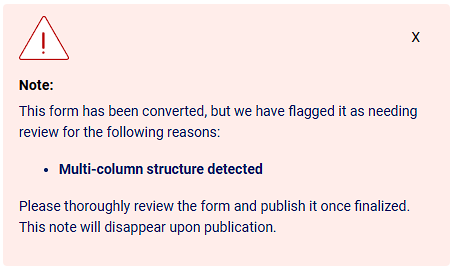
- For forms that Need Review, on the Form Details Page, a message will be displayed as to why the form needs review.
- Once the necessary updates have been made, beside the form's version, there will be a "Publish Smart Form" option.
Published Forms will not replace an In Process items, only new items going forward.