![fldata-logo.png]](https://help.fldata.com/hs-fs/hubfs/fldata-logo.png?height=50&name=fldata-logo.png)
Key Features
User Accounts Without Additional Permissions
By default, all users are automatically granted the following three permissions:
- Learner – Access to the Frontline Desktop to view and complete assigned training, check curriculums, and run personal training reports via the Quick Links section.
- View Company Libraries – Ability to browse the company training content library.
- View Public Libraries – Ability to browse the Frontline training content library.
Module Permissions and Organizational Permissions Work Together
Module Permissions alone do not provide additional access — they must be paired with Organizational Permissions. The module menu will only display items for which a user has been granted both module and organizational level permissions.
Organizational Hierarchy
LMS permissions follow a hierarchy: Company > Division > Account.
- Granting access at the Company level automatically provides access to all divisions and accounts within that company.
- Granting access at the Division level automatically provides access to all accounts within that division.
- When any account, division, or company level permission is added to a user's profile, the user is automatically granted access to their corresponding default organizational unit.
Note: If you grant overlapping access without considering the hierarchy, it unnecessarily increases the number of steps for an administrator to access certain data.
Email Notifications
Permissions also determine who receives due or overdue training email notifications. Learner and Supervisor Report permissions are granted automatically. To send overdue training notifications to department managers, grant them Account Report permission. To send them to a site manager for an entire site, grant Division Report permission.
LMS Module Permissions
Supervisor Report
Allows a person to create and run training and curriculum reports for the people reporting to them. Supervisors also receive email notifications for their employees' overdue training. Automatically granted to anyone selected as a primary or secondary supervisor of a learner.
Supervisor Admin
Allows a person to administer training for the people reporting to them, including managing curriculums and adding or updating training records. Not commonly used — a Division Admin can perform these tasks more efficiently.
Account Report
Allows a person to create and run training and curriculum reports for the accounts (departments) assigned to them.
Account Admin
Allows a person to administer training and curriculums for learners in their assigned accounts. Key tasks include setting up curriculums, setting up classes, and adding or updating training records.
Division Report
Allows a person to create and run training and curriculum reports for their assigned divisions. Report data includes all accounts within those divisions.
Division Admin
Allows a person to administer training and curriculums for their assigned divisions. Includes all Account Admin capabilities, plus the ability to:
- Add new accounts.
- Add or move learners.
- Add or edit Curriculum Items.
- Add Class Resources.
- Set up Email Notification Configurations.
Company Report
Allows a person to create and run training and curriculum reports for their assigned companies. Data includes all divisions and accounts within those companies.
Company Admin
Allows a person to administer training and curriculums for their assigned companies. Includes all Division Admin capabilities, plus the ability to:
- Create new divisions and accounts.
- Create system codes and status codes.
Division Author
Allows a person to create and edit training content, surveys, assessments, and tests within their assigned divisions.
Company Author
Allows a person to create and edit training content, surveys, assessments, and tests across any division of their assigned company. Can also view or edit training content created by any Division Author within their company.
Allow Editing Public Items
Allows a person to edit public or shared items, such as lessons created by other authors. Can only be granted by a Company Admin. Useful when the original author is no longer with the company.
LMS Organizational Permissions
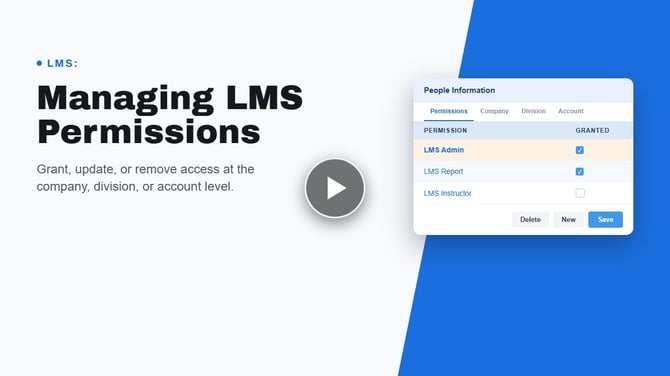
LMS Admin
Granted at the company, division, or account level to provide LMS module access. Automatically granted at the division level when any Admin or Author module permission is assigned.
LMS Report
Granted at the company, division, or account level to provide LMS reporting access. Automatically granted at the division level when any Report module permission is assigned.
Note: If a user has admin and report access at multiple levels or for multiple companies, divisions, or accounts, they must select the level and unit to see the corresponding data. Users can designate a preferred level and organizational unit to streamline their default view.
How to Manage LMS Permissions
All permissions are managed through the LMS module. A user must have LMS Admin permission at the company or division level to grant, update, or remove permissions.
Managing LMS Module Permissions
- Go to People > People Information in the LMS module.
- Find and select the user requiring additional permissions.
- Select the Permissions tab. Existing permissions will appear in a list on the left, with the Permission Details form on the right.
- To add a permission, click New in the toolbar and check the box next to the permission to be granted.
- To remove a permission, select the permission and click Delete in the toolbar. Confirm the deletion in the pop-up dialog.
- Click Save.
Note: Permissions are automatically granted at the user's default division. To grant permissions at a different organizational level, navigate to the Company, Division, or Account tabs.
Managing LMS Organizational Permissions
- Navigate to the Company, Division, or Account tab for the selected user, depending on the level at which access needs to be granted.
- From the list displayed, select the name of the organizational level to update.
- To add a permission, check the LMS Admin and/or LMS Report checkboxes.
- To remove a permission, uncheck the LMS Admin and/or LMS Report checkboxes.
- Click Update in the toolbar to save the changes.
LMS Permissions Quick Reference
| If you want the user to… | LMS User | LMS Admin | LMS Report |
|---|---|---|---|
| Complete assigned training |
✔ • Launch assigned courses • Complete quizzes & evaluations • Track own progress |
✔ | — |
| Assign training to users | — |
✔ • Assign curricula to users/groups • Manage training assignments • Set due dates |
— |
| Manage training content / libraries | — |
✔ • Manage courses & curricula • Configure learning libraries • Maintain training structure |
— |
| Manage users / enrollment setup | — |
✔ • Add/remove users from assignments • Manage enrollment rules • Adjust training requirements |
— |
| Run learning reports | — | — |
✔ • Access LMS reports • View completion status • Track compliance & progress |
| View company / public libraries |
✔ • Browse available training content |
✔ | ✔ |