![fldata-logo.png]](https://help.fldata.com/hs-fs/hubfs/fldata-logo.png?height=50&name=fldata-logo.png)
Key Features
- Standardized, reusable MOC templates
- Automatic parameter fill-in at MOC creation
- Optional grouping by Ref Code
- Configurable evaluation, implementation, collaborator, and approver requirements
- Mandatory vs. recommended requirement enforcement
Creating a MOC Profile
- Navigate to Settings > Profiles in the MOC module menu. Existing profiles will display.
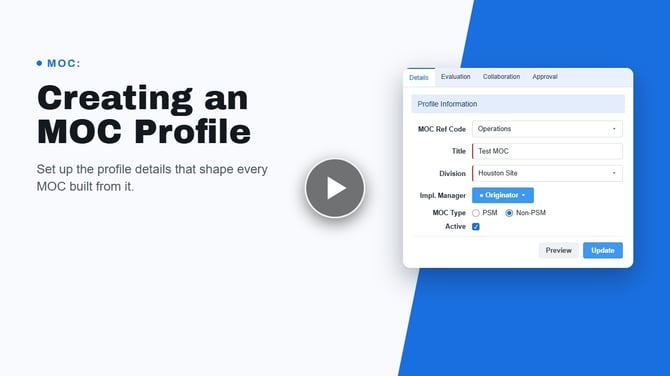
- Select New from the toolbar. The Profile Information form will display all available fields.
- Select the Ref Code the new profile will be attached to.
- Enter the profile Title (mandatory), Priority, MOC Type, and Implementation Manager.
- Optionally, select enforce days to approve and/or enforce days to collaborate — typically used for emergency MOC profiles.
- Select Save on the toolbar. The new profile is added to the list and available for users to select.
- Enter evaluation requirements, collaborators, approvers, implementation requirements, attachments, and equipment, if desired, using the tabs at the top.
If you plan to create many profiles, organize them by Ref Code. A profile left at none will be visible under all Ref Codes.
Instead of naming a specific implementation manager, check Originator as Implementation Manager — useful for profiles designed for low-impact changes.
Additional Options
- Mark the requirement mandatory or recommended. Mandatory requirements can't be removed by any user, including Super Users; recommended requirements can be removed by the originator if not applicable.
- Optionally check Originator as Evaluator, or designate a specific Evaluator.
Collaborators and Approvers
- Designate one or more as mandatory — these can't be deleted from the MOC when the profile is selected.
- Mark the requirement mandatory or recommended, with the same removal rules as evaluation requirements.
- Optionally check Originator as Implementer, or designate a specific Implementer.
- Optionally require one or more items be completed before the MOC can be submitted for approval — useful for risk/benefit screening steps like a hazard analysis or degree-of-change assessment.