![fldata-logo.png]](https://help.fldata.com/hs-fs/hubfs/fldata-logo.png?height=50&name=fldata-logo.png)
Key Features
User Accounts Without Additional Permissions
By default, users without additional permissions can still do the following from their Frontline Desktop:
- Create MOCs through predefined MOC Pre-Approval shortcuts.
- Complete any assigned MOC task (Evaluation, Collaboration, Approval, etc.).
- Track MOCs they are role players on.
- Sign off on MOC Send Notice notifications.
Module Permissions and Organizational Permissions Work Together
Module Permissions alone do not provide additional access — they must be paired with Organizational Permissions, and vice versa. The combination of the two determines what a user can see and do within the MOC module.
MOC Module Permissions
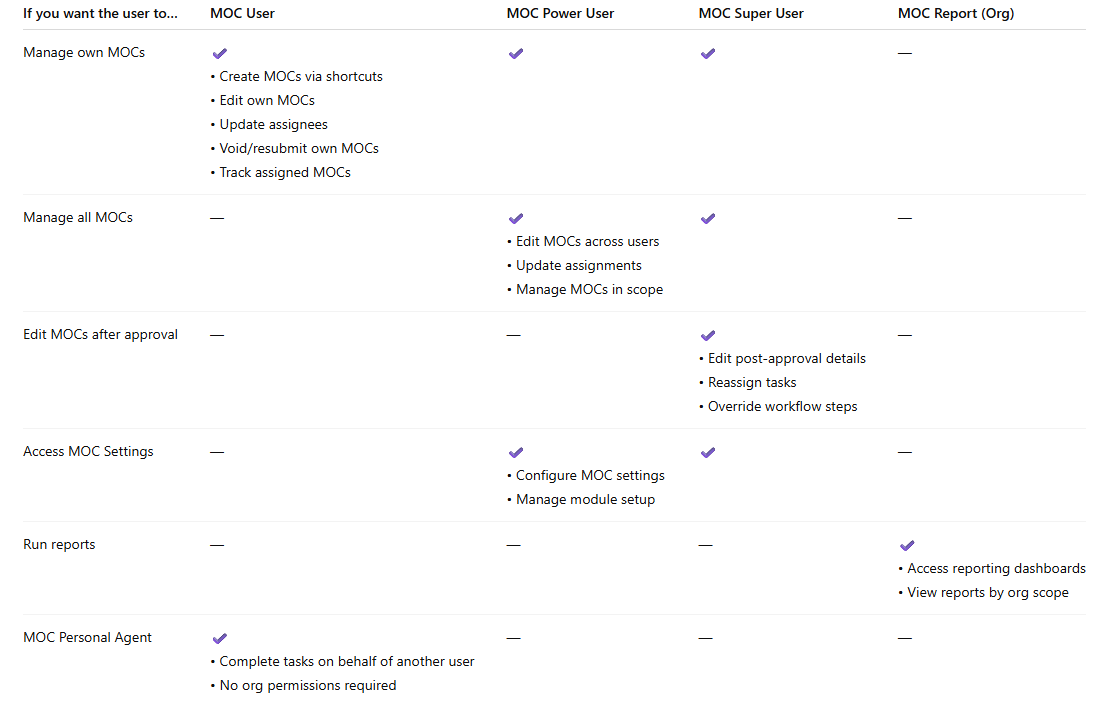
MOC User
The lowest level of MOC module permissions. Reserved for users needing limited access to the MOC In Process, Completed, and Voided folders at a specific organizational level (as low as the account level). Allows users to control various aspects of their in-process MOCs as Originators or Implementation Managers.
MOC Power User
A higher level of MOC module permissions. Reserved for advanced users responsible for overall MOC administration within a division or company. Grants all access provided by MOC User permissions, plus full access to MOC > Settings and the ability to update or change any Originator's MOCs.
MOC Super User
The highest level of MOC module permissions. Reserved for a very small number of administrative users who need the ability to make significant organizational changes to an MOC from creation through completion.
Examples of additional Super User capabilities:
- Make changes to MOC details post-Approval stage.
- Reassign and delete inbox requirements.
- Delete or reorder any MOC task at any point.
- Delete Approvers during the Approval stage.
Note: The Super User permission does not allow removal of mandatory requirements.
MOC Personal Agent
Does not grant access to the MOC module menu. Allows a user to create a personal agent who can complete all of their assigned MOC desktop tasks in their absence. This permission can be granted to anyone with a basic user account, with or without the consent of an MOC User or Power User.
MOC Organizational Permissions
MOC Admin
Grants access to MOC > In Process, Completed, and Voided folders at the company, division, or account level. Automatically granted at the division level when MOC User or MOC Power User permissions are assigned.
MOC Report
Grants access to MOC > Reports at the company, division, or account level. Automatically granted at the division level when MOC User or MOC Power User permissions are assigned.
Permission Combinations & Access
MOC User + MOC Admin
- Access to MOC In Process, Completed, and Voided folders.
- Ability to create new MOCs from the In Process folder.
- For MOCs where they are the Originator or Implementation Manager: change MOC details, manage assignees, manage tasks on behalf of others, void, and resubmit.
MOC User + MOC Report
- Access to the Reports menu.
MOC Power User + MOC Admin
- Access to MOC In Process, Completed, and Voided folders.
- Ability to create new MOCs from the In Process folder.
- For all MOCs: change MOC details, manage assignees, manage tasks on behalf of others, void, and resubmit.
- Full access to configure all elements in the MOC Settings menu.
MOC Power User + MOC Report
- Access to the Reports menu.
MOC Super User + MOC Admin
- Access to MOC In Process, Completed, and Voided folders.
- For all MOCs: change MOC details, manage assignees, manage tasks on behalf of others, void, and resubmit.
- Reassign Approvers while a task is in Inbox status.
- Delete Approvers during the Approval stage.
- Delete or reorder any MOC task at any point.
MOC Super User + MOC Report
- Access to the Reports menu.
MOC Personal Agent
- Does not require Organizational Permissions.
- Allows users to designate a personal agent from their desktop to complete MOC tasks on their behalf.
How to Manage MOC Permissions
All permissions are managed through the LMS module. A user must have LMS Admin permission at the company or division level to grant, update, or remove permissions.
Managing MOC Module Permissions
- Go to People > People Information in the LMS module.
- Find and select the user requiring additional permissions.
- Select the Permissions tab. Existing permissions will appear in a list on the left, with the Permission Details form on the right.
- To add a permission, click New in the toolbar and check the box next to the permission to be granted.
- To remove a permission, select the permission and click Delete in the toolbar. Confirm the deletion in the pop-up dialog.
- Click Save.
Note: Permissions are automatically granted at the user's default division. To grant permissions at a different organizational level, navigate to the Company, Division, or Account tabs.
Managing MOC Organizational Permissions
- Navigate to the Company, Division, or Account tab for the selected user, depending on the level at which access needs to be granted.
- From the list displayed, select the name of the organizational level to update.
- To add a permission, check the MOC Admin and/or MOC Report checkboxes.
- To remove a permission, uncheck the MOC Admin and/or MOC Report checkboxes.
- Click Update in the toolbar to save the changes.
MOC Permissions Quick Reference