![fldata-logo.png]](https://help.fldata.com/hs-fs/hubfs/fldata-logo.png?height=50&name=fldata-logo.png)
Below are the quick filters for the MOC dashboard:
- Company: Select an organization from the list to filter dashboard data. Only those you have permissions for will appear in the dropdown.
- Division: Select an option from the list to filter the displayed information by a division.
- Account: Select an option from the list to filter the dashboard data by an account.
- Date: Select the date range by year of information you are looking for.
- Custom Range: This option will allow you to filter by a select range of dates.
- Users: Select one or more users to filter the dashboard data (availability depends on your role and permissions).
- Myself: Filter option limits dashboard data to records associated with the currently logged-in user.
Below are the KPI dashboard statistics:
- In Process: Number of MOCs located in the MOC > In Process Folder.
- Ready for Close-Out: Number of MOCs ready for the MOC to be closed (completed) by the Originator.
- Awaiting Startup Approval: Number of MOCs waiting StartUp approval by the Implementation Manager.
- Notices Awaiting Sign Off: Total number of Send Notices that have been delivered by the implementer and are awaiting action as Training Items on the assignee's desktop.
- Past Expiration Date: Number of MOCs that have exceeded the expiration date listed on the respective MOC details.
- Past Completion Date: Number of MOCs that are overdue and have gone past the expected completion date listed on the respective MOC details.
Below are the dashboard charts:
Below are the charts that will be displayed when viewing the MOC dashboard with the Company quick filter applied.
Charts Displayed at the Company Level (Default View)
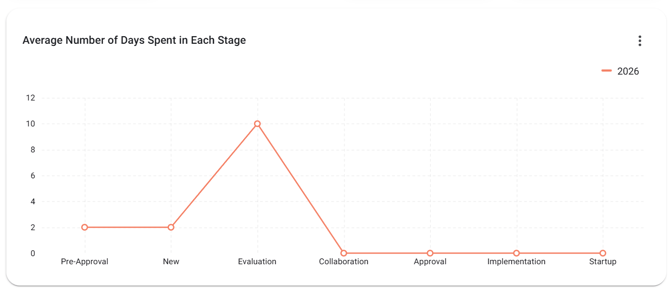
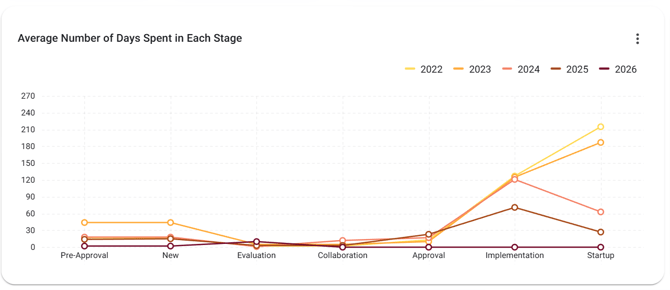
- Average Number of Days Spent in Each Stage
- This chart will display the average number of days an MOC stays in each stage before progressing to the next. By hovering over the respective stage, the data will be formatted as [Stage: Number of Days]
Default view: Displays a single trend line for the year selected in the Date quick filter (YTD displays the current year only).
The number of trend lines displayed depends on the Date quick filter selection. When multiple years are selected via the Custom Range, the chart displays a separate line for each year included in the filter, up to a maximum of five years.
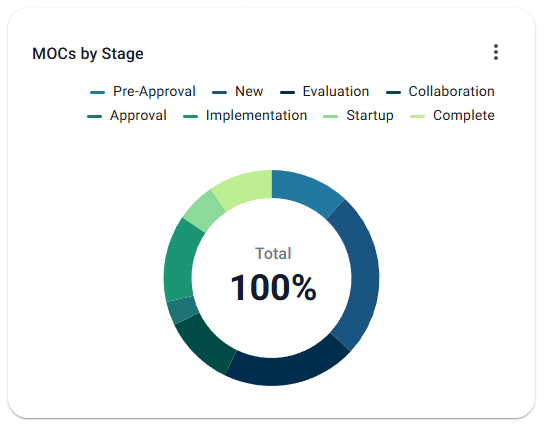
- MOCs by Stage
- This chart will display the MOCs grouped by stage. By hovering over the respective stage, the data will be formatted as [Stage: Percentage %]
- Expected Completion Date Tracking by Division
- This chart will display the quick statistic "Expected Completion Date" in more detail by showing the number of MOCs which are Ontime versus Overdue. By hovering over the respective bar, the data will be formatted as [Status: Number of MOCs].
This can be filtered by division if desired.
- MOCs by Ref Code per Stage
- This chart displays the total number of MOCs per Ref Code. Hovering over a Ref Code will display the data in the format: [Ref Code: Number of MOCs].
Default view: Displays the total number of MOCs per Ref Code:
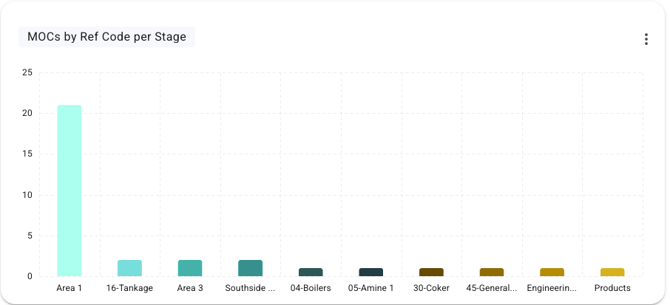
Drill-down view: Click a Ref Code bar to view MOCs grouped by Stage for the selected Ref Code:
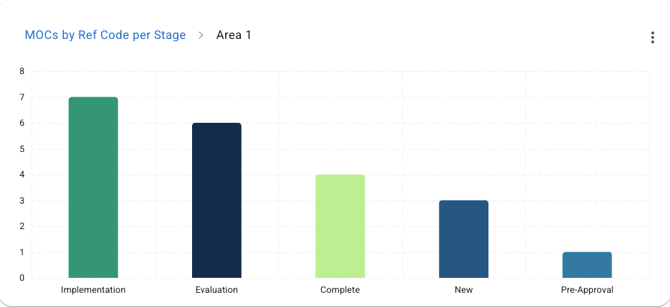
This can be filtered by Ref Code if desired.
- MOCs by Ref Code Per Division
- This chart displays the total number of MOCs per Ref Code. Hovering over a Ref Code will display the data in the format: [Ref Code: Number of MOCs]
Default view: Displays the total number of MOCs per Ref Code:
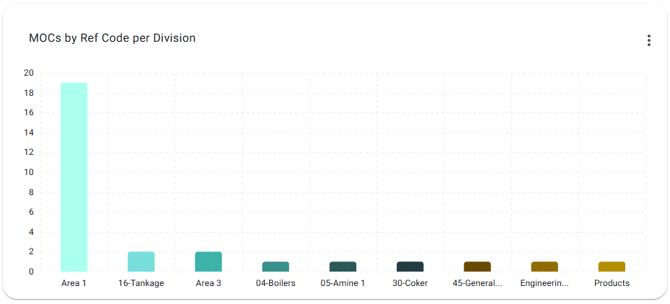
Drill-down view: Click a Ref Code to view MOCs grouped by Division for the selected Ref Code:
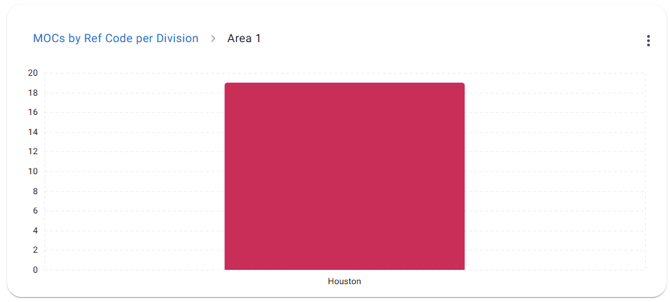
This can be filtered by Ref Codes if desired.
- MOCs by Priority per Division
- This chart displays the total number of MOCs per Priority. Hovering over a Priority will display the data in the format: [Priority: Number of MOCs]
Default view: Displays the total number of MOCs grouped by Priority:
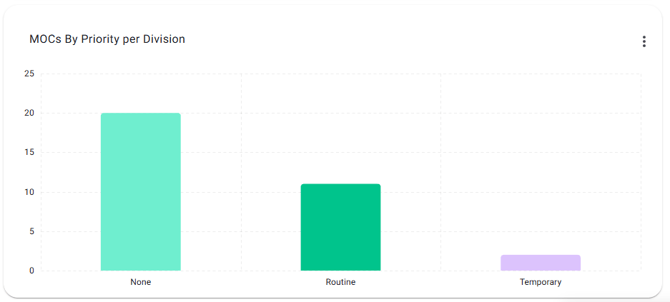
Drill-down view: Click a Priority to view MOCs grouped by Division for the selected Priority: 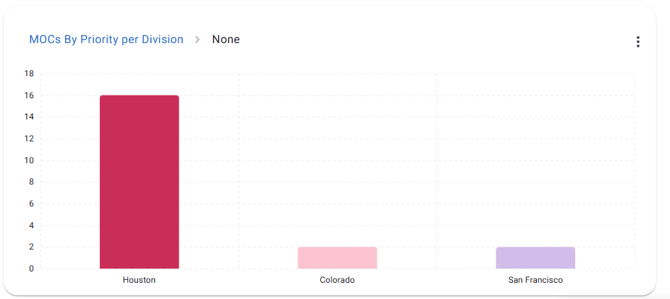
This can be filtered by Priorities if desired.
Charts Displayed at the Division Level - Once a division filter is applied, the below dashboards will appear.
- MOCs by Ref Code Per Account
- This chart displays the total number of MOCs per Ref Code. Hovering over a Ref Code will display the data in the format: [Ref Code: Number of MOCs].
Default view: Displays the total number of MOCs per Ref Code:
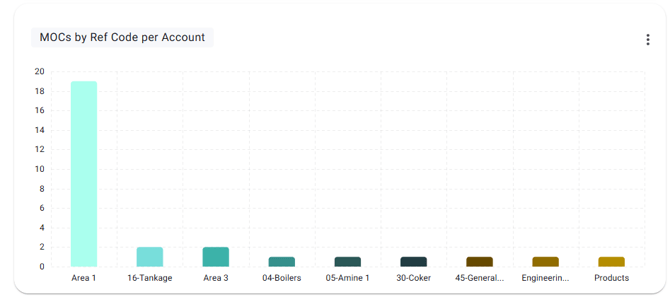
Drill-down view: Click a Ref Code to view MOCs grouped by Account for the selected Ref Code: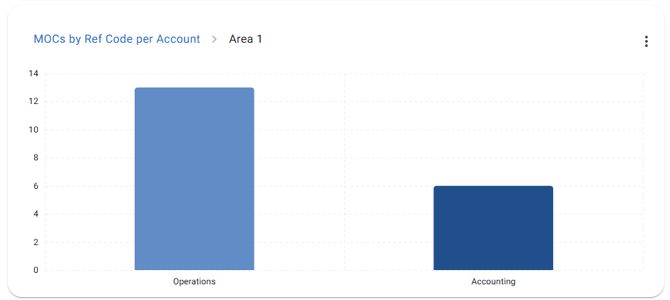
This can be filtered by Ref Codes if desired.
- MOCs by Stage per Profile
- This chart displays the total number of MOCs by Stage per profile. Hovering over a Stage will display the data in the format: [Stage: Number of MOCs].
Default view: Displays the total number of MOCs grouped by Stage:
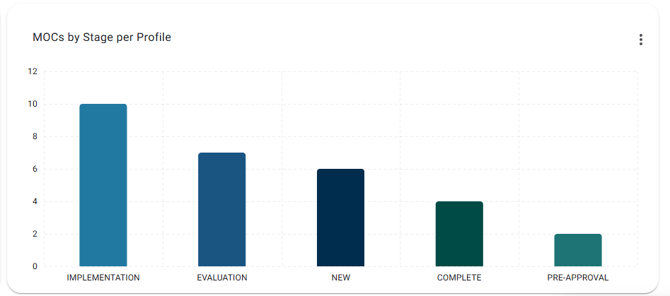
Drill-down view: Click a Stage bar to view MOCs grouped by Profile within the selected Stage: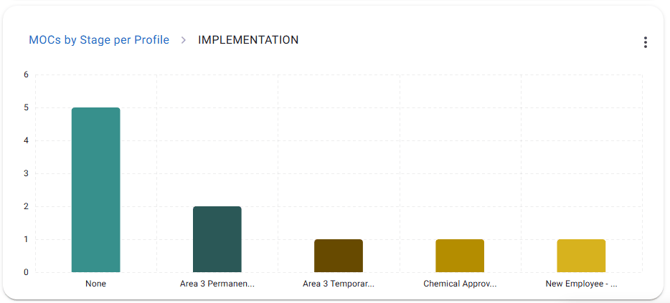
This can be filtered by Profiles if desired.
- Expected Completion Date Tracking by Month
- This chart displays the total number of records grouped by Expected Completion Month, separated by On Time versus Overdue status. Hovering over a bar segment displays the data in the format [Status: Number of MOCs].
This can be filtered by Months if desired.
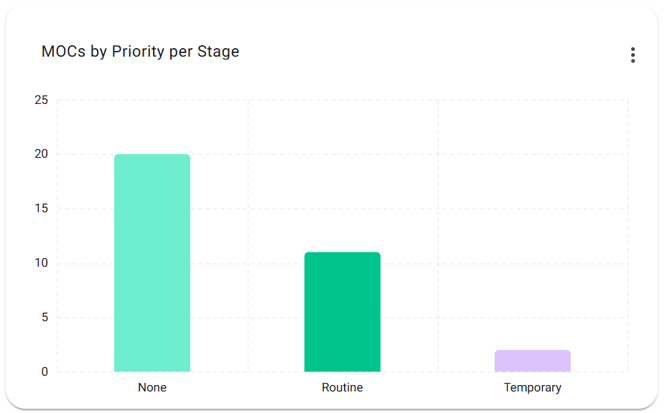
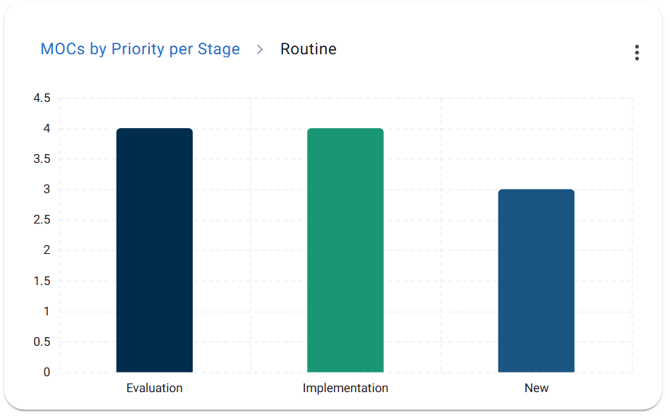
- MOCs by Priority per Stage
-
This chart displays the number of MOCs in each stage of the workflow, organized by Priority. Hovering over a bar segment displays the data in the format: [Stage: Number of MOCs].
-
Default view: Displays the total number of MOCs grouped by Priority:
Drill-down view: Click a Priority bar to view MOCs grouped by the selected Stage:
This can be filtered by Priorities if desired.