![fldata-logo.png]](https://help.fldata.com/hs-fs/hubfs/fldata-logo.png?height=50&name=fldata-logo.png)
Key Features
Who Can Approve?
- Any active user selected as an Approver for the MOC.
- Once an MOC enters the Approval stage, the ability to edit it is limited.
Sequential vs. Simultaneous Approval
- Approvers can be arranged in order (sequential) or grouped together (simultaneous/parallel).
- If Approvers are in a parallel group, all of them must approve before the MOC moves to the next step.
- If an Approver is assigned by job role rather than by name, any person holding that job can complete the approval.
Approval Actions
Any Approver can take one of three actions:
- Approve – The MOC moves to the next Approver or into the Implementation stage.
- Disapprove – The MOC is immediately moved to the MOC > Voided folder. The Originator and all other role players are notified by email, including the disapproval comments. Comments are required.
- Hold (Approval Pending) – The MOC is paused. Comments are required explaining the reason for the hold. Emergency MOCs cannot be placed on hold.
- Return to Collaboration – Available to the first Approver only. Returns the MOC to the Collaboration stage for further review and discussion before Approval is reconsidered. Comments are required explaining the reason for the return.
Note: The Return to Collaboration option is only available to the first Approver in the sequence. Subsequent Approvers will not see this option.
Due Dates
- If "Days to Approve" is enforced, each Approver's task will show a due date, calculated as:
Days to Approve + Date Assigned = Due Date
- If an Approver misses their due date, the MOC automatically moves to the next Approver.
- If all Approvers miss their due dates, the MOC is automatically voided and moved to MOC > Voided.
- MOCs with enforced due dates cannot be placed on hold.
Making Changes During Approval
The Originator or a Power User can still make limited changes during this stage:
- Swap out Approvers who haven't approved yet.
- Add new Approvers after those who have already approved.
Tracking Approvals
Approvers can monitor the status of all MOCs they're involved in via the MOC Participation link in the Quick Links section of their Frontline Desktop.
How to Start the Approval Stage
- Go to MOC > In Process > [organization level] in the MOC module menu.
- Click Start Approval on the MOC workflow diagram, then click OK to confirm.
- The MOC will appear on each Approver's desktop as an assigned task.
Tip: To notify Approvers right away, click Send Immediate E-mails. Otherwise, they'll receive notification through the nightly batch email.
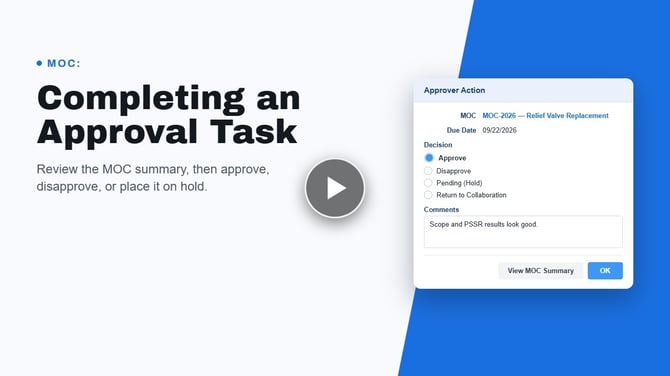
How to Complete an Approval Task
- From your Frontline Desktop, select the MOC title under the MOC tab.
- Click View MOC Summary and review it carefully. Select any attachment links to view relevant information.
- Click Close to exit the summary.
- Click Take Action to make your decision.
- Choose one of the following:
- Approve – Moves the MOC to the next Approver or into the Implementation stage.
- Disapprove – Moves the MOC to the Voided folder. You must enter comments explaining the decision.
- Pending – Places the MOC on hold with an "Approval Pending" status. You must enter comments explaining the reason.
- Return to Collaboration – Returns the MOC to the Collaboration stage for additional review. You must enter comments explaining why the MOC is being returned. This option is only available to the first Approver in the sequence.
- Click OK to submit your decision.
- Click the Frontline Desktop icon to return to your desktop.