![fldata-logo.png]](https://help.fldata.com/hs-fs/hubfs/fldata-logo.png?height=50&name=fldata-logo.png)
Key Features
Management
-
Only MOC Power Users and Super Users can create and configure implementation requirements. You'll find them under Settings >Requirements
Scope
- Requirements can apply to a specific division or across your entire company.
- To make a requirement company-wide, simply leave the Division field blank.
Attachments
- You can attach a Smart Form (like a Pre-Startup Safety Review checklist) or link to a network document via URL, but not both at the same time.
- If a form is attached, the assignee must complete all required fields before closing out the requirement.
Critical vs. Non-Critical
- Critical requirements must be completed before MOC startup.
- Non-Critical requirements are more flexible.
- The default setting can be changed by the MOC originator when adding the requirement to their MOC.
Assignment
- Requirements can be assigned to an individual or a job role.
- Assignees can transfer their task to another person if needed.
- You can set a default Implementer, useful when the same person always handles a specific task (e.g., a draftsman who updates all drawings for a particular plant).
- The MOC originator can also be set as the default Implementer.
Verification
- A verifier can be added. Once a task is completed, it moves to the verifier's desktop for review. The verifier can approve it or send it back to the Implementer.
Due Dates
- Set a due date by entering a number in the Days to Complete field. The due date is automatically calculated from the date the task is assigned.
Required Before Approval
- You can require certain tasks to be completed before the MOC is submitted for approval. Note: this option is only available when the Originator is set as the Implementer.
Action Items
- Every requirement includes an Action Items button, which lets you create and assign follow-up action items directly from the requirement.
How to Create an Implementation Requirement
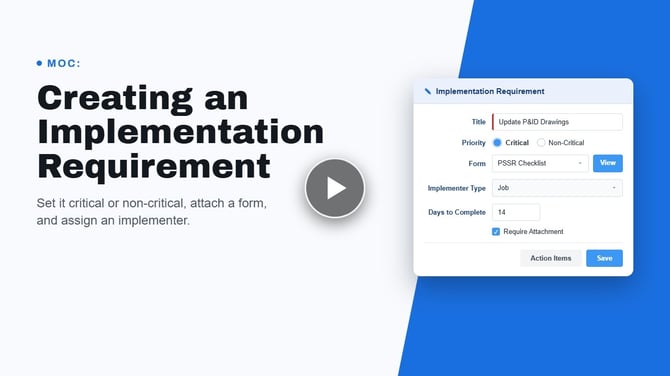
- Go to Settings > Requirements > Implementation and click New in the toolbar at the upper right corner of the screen.
- Enter a Title for the requirement.
- Add an optional Description to provide more detail.
- Choose whether the requirement is Critical or Non-Critical.
- Attach a form or document (optional — choose one, not both):
- Form: Select from the drop-down and click View to confirm it's correct.
- Document: Click Choose File, browse for your file, and select Open. After saving, a View link will appear so you can verify it.
- If you wish to Create an MOC, choose how the task should work:
- Can be completed after creating the MOC – The task can be closed once the MOC is submitted.
- Must remain open until MOC is closed out – The task stays active on the assignee's desktop until the full MOC is closed.
- Check Require Attachment if the assignee must upload a file before completing the task.
- Set the Implementer (optional):
- Originator – Select "Originator" from the Implementer Type drop-down.
- Specific person or job role – Select "Individual" or "Job," then search for the person or role.
- Confirm the Company and Division are correct.
- Click Save. The requirement is now available for use.
Tip: If you haven't created the form you want to attach yet, save the requirement without one, build the form, then come back and attach it.
Using Requirements in Profiles
For complex MOCs with many requirements, we recommend adding requirements to profiles ahead of time. Profile-level settings (critical/non-critical, default Implementer) override the base settings, giving you more control for different types of MOCs.
Send Notice: The Built-In Notification Requirement
Send Notice is automatically included in every MOC and every profile — you don't need to add it manually.
What it does:
- Notifies people affected by the MOC by creating a training item on their Frontline Desktop.
- The notification contains the MOC summary, and recipients must click Sign-Off to confirm they've read it.
- A completion record is kept for each sign-off, which is important for regulatory compliance.
- Recipients can review past sign-offs anytime via the MOC Sign-offs link on their desktop.
Need to notify people twice? Use Send Second Notice.
This is helpful for long-term projects (like capital projects) where you may need to notify people when the MOC is first approved and again right before startup. Key differences from Send Notice:
- It's optional — it doesn't have to be used in every profile or MOC.
- To make it mandatory for certain MOC categories (e.g., Capital Projects), add it to the relevant profile.
- The Implementer must include a comment explaining why a second notice is being sent, which is displayed to recipients above the sign-off link.