![fldata-logo.png]](https://help.fldata.com/hs-fs/hubfs/fldata-logo.png?height=50&name=fldata-logo.png)
Mobile App Overview:
- The mobile application is designed for users working in the field or in a plant environment. It allows users to complete items that have been assigned to them while on the go.
- The Mobile App is not intended for advanced administrative tasks such as creating new training content, administering incidents, or configuring and managing MOC workflows.
- Users have the option to create new events, MOCs, and run reports if the appropriate shortcut is assigned to their user.
How to Download the Mobile App:
- Open your device’s application store:
- Apple App Store (iOS)
-
- https://apps.apple.com/us/app/frontline-ehs/id1449806359
-
- Google Play Store (Android)
-
- https://play.google.com/store/apps/details?id=com.frontline.FrontlineEHS&pcampaignid=web_share
-
- Apple App Store (iOS)
- Search for “Frontline EHS”
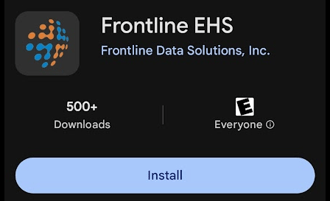
3. Select the application and tap Download or Install
4. Once installation is complete, open the app to begin sign-in
For the best experience, update your phone and the mobile application to the newest software versions before using the application.
How to Log into the Mobile Application
Users must accept the email confirmation/invite and log into the web version prior to logging into the mobile application.
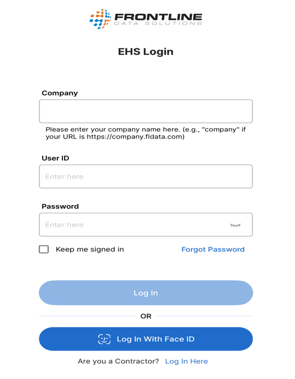
- Enter your domain (company name from your URL) into the company field.
- Example URL: https://FrontlineEHS.fldata.com.
- Domain from example: "FrontlineEHS"
- Click Next.
- If you are a contractor, click "Login Here" at the bottom of the page.
- Enter in your Username (UserID) and Password.
- Click Login.
Single Sign-On (SSO) Login via One-Time Password (OTP)
For clients who use Single Sign-On (SSO), the mobile app login experience is slightly different.
After entering your company domain, the login screen will update:
-
The User ID and Password fields will be replaced with an Email Address field.
-
The Log In button will be replaced with a Next button.
How to Log In with OTP:
-
Enter your company domain.
-
Enter your email address.
-
Click Next.
-
A One-Time Password (OTP) will be sent to your email.
-
On the OTP screen, enter the code in the Enter One Time Password field.
-
Click Log In.
If you do not receive the email:
-
Select Send Again to resend the OTP.
-
Use the Back button to return to the previous screen if needed.
Biometric Authentication (iOS and Android)
The Frontline Mobile App supports biometric authentication on supported iOS and Android devices. This allows users to log in using Face ID, Touch ID, or device fingerprint recognition.
Requirements:
-
Biometrics must be enabled on your device.
-
Biometrics must be enabled within the Frontline Mobile App.
-
The Keep Me Signed In option must NOT be selected.
How It Works:
When launching the app, users who meet the above requirements will automatically be prompted to log in using their device’s biometric authentication.
You do not need to select a separate login button to initiate biometric authentication.
MOC and Event Notice Sign Off
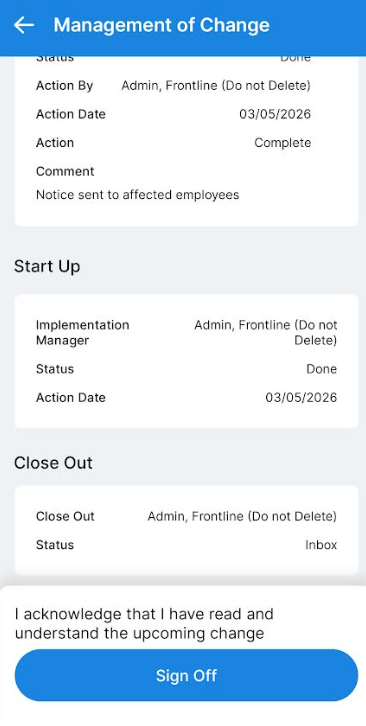
Users can complete MOC Notice and Event Notice sign offs directly within the Mobile App.
When opening a MOC Notice or Event Notice:
-
A Sign Off button will appear at the bottom of the Summary screen.
-
Users must scroll to the bottom of the Summary to activate the Sign Off button.
-
Tap Sign Off to confirm the notice has been reviewed.
Once selected, a record will be written for the user on the associated Sign Off Training Item.
The sign off process functions the same as it does in the web application.
Below are the sections of the Mobile Application
- Search: Enter in characters to search through your items on the current tab. This can be helpful if you have a large number of training assignments but are looking for a specific one.
- Shortcuts: Event Shortcuts, MOC Pre-Approval Shortcuts, and Report Shortcuts can be found here. These shortcuts are how users can submit new Events or MOCs on-the-go.
- Events: Collaboration, Approval, Implementation and Close-Out tasks can be found here.
- Actions: Ad Hoc, Sub Action, MOC and Event based action items can be found here.
- MOC: Pre-Approval, Evaluation, Collaboration, Approval, Implementation and Close-Out tasks can be found here.
- Trainings: Training Item assignments like WBT, SCORM, DOC & more can be found here.
- Contractor: Enter your CSM contractor ID or open the QR code to check-in for on-site work.
Select the two horizontal lines (=) in the top right corner to view your training assignments, training records, language and even provide helpful feedback.