![fldata-logo.png]](https://help.fldata.com/hs-fs/hubfs/fldata-logo.png?height=50&name=fldata-logo.png)
Key Features
Who Can Create a Personal Agent
- Only MOC Power Users and Super Users can create a personal agent on behalf of another person.
- A personal agent can be created for anyone within the user's division, or company-wide if company-level access has been granted.
How It Works
- Effective the Active Date and Time, all of the user's MOC tasks are transferred to the designated personal agent.
- Any new tasks assigned to the user during the active period will also be automatically transferred to the agent.
- Once the Inactive Date and Time is reached, any remaining open tasks automatically revert back to the original assignee. No manual reassignment is required.
Task Behavior After the Agent Period Ends
- Open or uncompleted tasks are not permanently transferred — task assignment is determined dynamically based on the active agent period.
- Tasks completed by the personal agent remain in the record history under the agent who performed the action, preserving audit details such as timestamps and user identity.
- Notifications follow the same routing logic:
- While the agent is active, notifications are sent to the personal agent.
- After the inactive date, notifications are sent back to the original assignee.
- Previously sent notifications are not recalled or changed.
Record Keeping
- It is recommended to never delete a personal agent record once the Inactive date has passed, in order to preserve the historical record of the transfer.
How to Create a Personal Agent on Behalf of Another Person
Note: The Agent List is for temporary task transfers only. To permanently reassign tasks when an employee has left the company or moved to a different position, use the Reassign MOC Tasks feature. See the MOC Reassign MOC Tasks article for more information.
- Go to Settings > Agent List in the MOC module menu. All existing personal agents for your division (or company, if access permits) will be displayed.
- Click New in the toolbar to create a new personal agent.
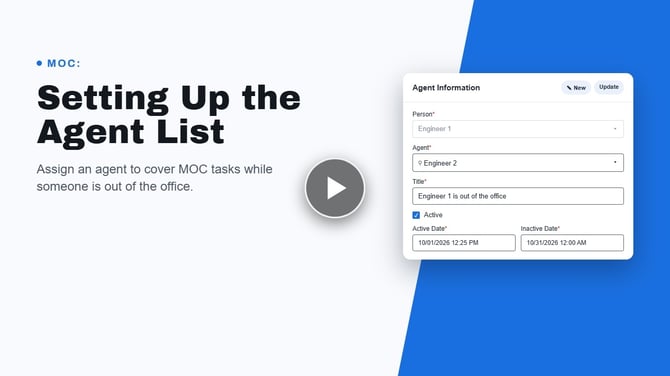
- In the Person field, enter the first few characters of the last name of the user you are creating the agent for, then click the ellipses (...). Select the user from the returned list.
- In the Agent field, enter the first few characters of the last name of the person who will act as the personal agent, then click the ellipses (...). Select the user from the returned list and click OK.
- Enter a Title for the personal agent record.
- Set the Active and Inactive dates and times to determine when tasks are transferred to the agent and when they revert back to the original assignee.
- Checking Active activates the personal agent — MOC tasks are transferred to the agent effective the Active date.
- Unchecking Active deactivates the personal agent — all MOC tasks revert back to the original assignee.
- Click Save.
Note: All new tasks assigned to the user will also be transferred to the personal agent automatically throughout the active period, up to the Inactive date and time.